Using the Viewer
You can use the Viewer only in the context of a Case and in association with the Composition Tracking Analysis Rule.
To edit/view (initialize) composition data in an inventory, transfer or flow:
Open PI System Explorer or the Modeler.
In our example we are using PI System Explorer.
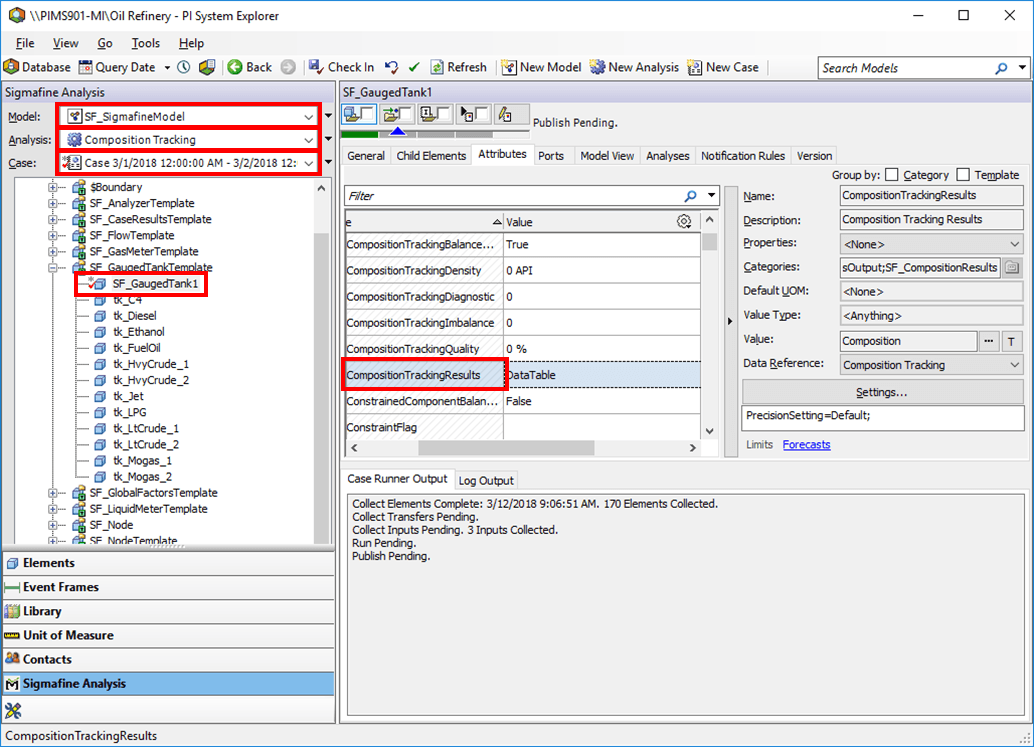
Select a database, model, analysis rule and a case.
Select the Element and the Attribute as shown in Figure 323.
Double-click the Attribute value to display the Composition Tracking Viewer window.
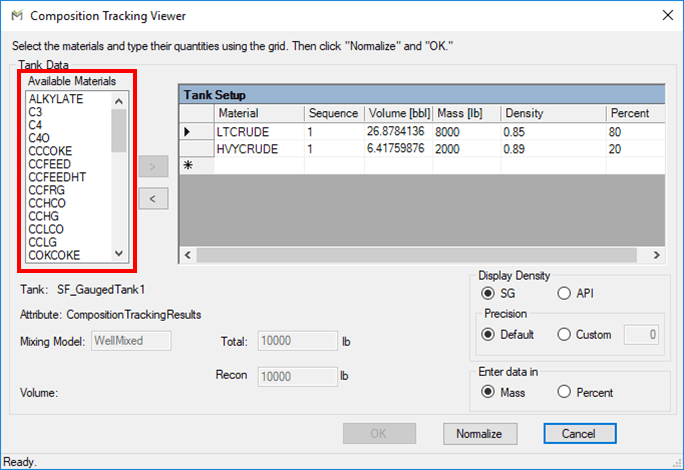
In the Available Materials list, select a material you want to add to Tank Setup.
Click the
 add button to move the material name to Tank Setup.
As you move a material, the Viewer also moves the material's density from the material table. The Viewer uses the analysis rule configuration string to determine the name of the material table and the density column within the table.
To remove a material from the Tank Setup area, select the material under Tank Setup and click the
 remove button.
Enter the Mass/Volume values or percentages.
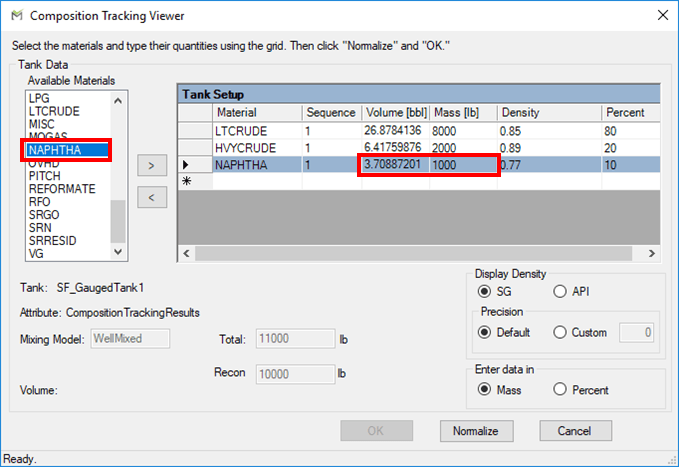
Fill in the mass or volume column depending on how your analysis rule is configured.
The Viewer computes the other value as you type. That is, if you enter 'mass' values, the Viewer calculates the 'volume' automatically.
Refer to the table name for descriptions of the fields and buttons in the viewer window.
When you are finished, click Normalize.
The Viewer normalizes your entries to the net volume or measured mass of the tank.
If the measured value and the total differ by more than 1%, the following warning message appears.

Click OK to normalize and close the warning message.
You are returned to the Viewer.
Click OK to close the Viewer.
Do one of the following:
If you are using PI System Explorer, click the
 Check In button to check your data into the database.
If you are using ProcessBook (Modeler), from the menu select File > Save.
Composition Tracking Viewer Fields / Buttons
| Field / Button | Description |
|---|---|
| Available Material | Select a Material or multiple Materials. The material list is based on the table specified in the Composition Tracking Analysis Rule. |
| Material | Read-only field displays name of material. |
| Sequence | When initializing or correcting a tank composition, enter the numeric sequence of material according to the requirement of the mixing model. For rules about entering the sequence during tank initialization, refer to the section "Entering Tank Sequence" following this table. |
| Enter Data In | Select how you are entering your data: Mass (Volume) or Percent. |
| Volume / Mass | If you select Mass (Volume) as the means of entering data, enter the mass (volume) of the material. The Viewer computes the other value automatically. |
| Density | Read-only field displays density of material from material table. |
| Percent | If you select Percent as the means of entering data, enter the percentage of the material. The Viewer computes the Mass (Volume) automatically. |
| Normalize | Click to normalize the value selected in the “Enter data in” selection. |
| Total | Read-only field displays the Mass (Volume) total from the table. After normalization this value will be equal to the MeasuredMass (MeasuredVolume) value displayed below. |
| MeasuredMass / MeasuredVolume | Read-only field displays the content of the Measured/Corrected Mass (Volume) attribute.For mass basis: The editor uses MeasuredMass when the ManualAdjustment Attribute is set to false and uses CorrectedMass when the ManualAdjustment Attribute is set to true.For volume basis: The editor uses NetVolume when the ManualAdjustment Attribute is set to false, and uses CorrectedVolume when the ManualAdjustment Attribute is set to true. |
| OK | Click to close and save your changes. |
| Mixing Model | Read-only field displays mixing Model selected for the MixingModel Attribute of the material. |
| Cancel | Click to close without saving changes. |
Entering Tank Sequence
Note that the Sequence column is read only or editable depending on the value of the attribute “Mixing Model” within the same element.
- If the mixing Model Attribute is set to: Baffled, WellMixed, or MakeUpPurge, then the sequence column is read only and the value 1 appears for all materials. This is because there is no sequential order in these mixing Models and the sequence is not used.
- If the Mixing Model value is Line, FIFO or LIFO the sequence needs to be initialized and must be entered so that there is a sequence starting with 1. This sequence can appear in any order in the table. Materials with the same sequence index are part of the same packet.